Radio firmware upgrade: backup, single and batch writing, failure recovery
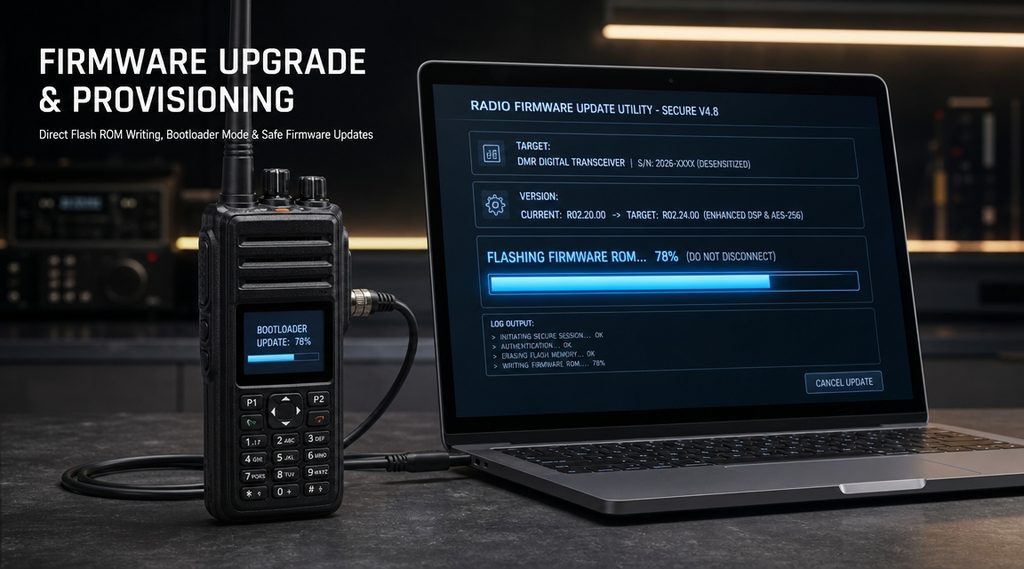
Most failed upgrades are not firmware faults. They are power faults, cable faults and missing backups.
A radio firmware upgrade touches three separate stores: the firmware, the configuration and the identity. Each one needs its own plan.
This guide walks through the backup, the single-unit procedure, the batch, the recovery path and the checks afterwards.
It assumes a conventional DMR or analogue-digital fleet. Menu names differ by vendor; the sequence does not.
What an upgrade actually changes
Three things live in a radio, and they are not upgraded together by default.
The three layers
The bootloader starts the radio and accepts new code. It rarely changes, and it is what rescues a failed write.
The firmware is the operating code: audio, signalling, scanning, power control. This is what an upgrade replaces.
The codeplug is your configuration: channels, zones, contacts, keys, ID. It should survive untouched.
What must not move
Your radio ID, encryption keys, contact list and channel plan belong to you. A well-run upgrade leaves every one of them in place.
Some releases rewrite the codeplug structure as a side effect. That is when a channel disappears, or a zone comes back empty.
If the tool offers to convert the codeplug, read the prompt before accepting. Conversion is where data is lost.
Why versions must be read, not assumed
Read the installed version from the radio before planning anything. Not from a sticker, and not from the last delivery note.
A fleet is usually a mix. Three purchase batches produce three versions, and each may need a different file.
The current version also tells you whether the upgrade is a maintenance release or a feature jump.
Who may load the file
This part is regulatory, not technical. In the United States it decides whether a dealer can press the button.
The software clause
47 CFR 2.1043(a) separates software that changes radio frequency emissions from software that does not.
Changes to transmitter software that do not affect emissions need no additional filing, and may be made by parties other than the grant holder.
That sentence is what makes routine dealer firmware work lawful. It is also narrow, and the exceptions matter.
The three permissive classes
| Class | What changed | Filing |
|---|---|---|
| Class I | No degradation of reported characteristics | None required |
| Class II | Reported performance degrades but still meets the rules | Grantee files; no marketing before acknowledgement |
| Class III | Software changes frequency range, modulation or output power | Approval before the software is loaded |
Class I and Class II changes may only be made by the grant holder, apart from the software case in (a).
Class III covers software defined radio changes outside the approved parameters. The rule says the software shall not be loaded before acknowledgement.
Reading the scope statement
Section 2.1043(c) requires a statement of whether a change applies to all units, including previous production, or only to units built afterwards.
That distinction decides whether your installed base is entitled to the same firmware as new stock.
Ask for the statement, not for a verbal assurance. It is one paragraph and it settles the question.
What it means at the bench
Before loading, ask one question: does this release change emissions, modulation or power?
If the answer is yes, stop and get it in writing from the manufacturer. If the answer is no, proceed with the backup.
Keep the release note with the job record. It is the evidence that the question was asked.
Back up before you write
A backup you have never restored is a hope. A backup you have read back is a plan.
Read the radio, not the folder
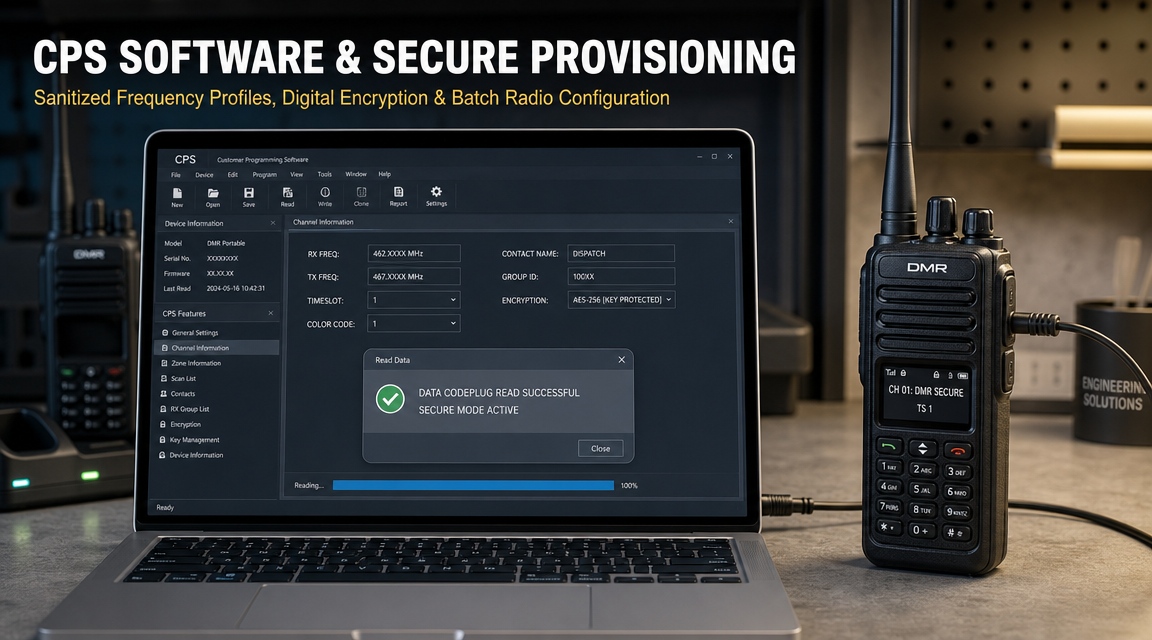
Read the codeplug from the radio itself. The file on your laptop may be older than the unit in your hand.
Label the read with the serial number and the date. Do this before every write, not once per project.
What to export
| Item | Where it comes from |
|---|---|
| Full codeplug | Read from the radio |
| Channel and zone list | Exported as a readable file |
| Contact and talkgroup list | Exported separately |
| Encryption keys | Recorded by key ID, not by value |
| Feature licences | Entitlement list from the vendor portal |
| Alignment or tuning data | Only if the platform keeps it separately |
Name the file so it can be found
Use model, serial, version and date. A folder of files called backup1 to backup9 is not a backup system.
Store it outside the programming laptop as well. Laptops fail, and they leave the building.
Record the baseline
Write down the firmware version, CPS version, serial, radio ID and enabled features before touching anything.
That sheet is your comparison after the upgrade. Without it, “it feels different” is the only evidence you will have.
Preparing the fleet
Preparation is where reliability is decided. Two hours of prep saves a week of recovery.
Power, not hope
Use mains power or a freshly charged pack. A brownout mid-write is the classic way to lose a radio.
Never upgrade a radio sitting on a charger that is also charging other units. Shared supplies sag under load.
Check the cable connector for play. A connector that rocks will drop the link at the worst moment.
Cable and port discipline
Use the programming cable the vendor specifies. Some cables are charge-only, and some third-party cables drop large writes.
Plug directly into the laptop, not through an unpowered hub. Hub power and hub timing both cause failures.
Label the cable that works, and keep it with the programming laptop.
Check compatibility before the batch
Match three versions: the CPS, the firmware file and the radio model. Mismatches are refused, or worse, accepted.
A CPS older than the firmware usually refuses the file. A CPS newer than the radio usually opens it without trouble.
Ask the vendor which CPS release matches the firmware. This is a one-line question with a long consequence.
Decide the rollback before you start
Keep the current firmware file on the bench. Without it, a rollback becomes a request to the factory.
Confirm whether the platform accepts a downgrade. Some do, some refuse, and some need an intermediate version.
If a downgrade is impossible, the decision to upgrade becomes permanent. Treat it that way.
Choose a pilot group
Pick one group for the first radio firmware upgrade. A group is better than a single radio, because it tests group calling.
Choose a group that can work on the old version for a day. Never pilot on the group that handles alarms.
Run it for a full shift before the rest of the fleet. Most version faults appear at shift change, not at the bench.
Single-unit upgrade
Do one radio completely before touching the fleet. It exposes every problem while the cost is low.
The sequence
- Read and save the codeplug.
- Record the baseline versions and the radio ID.
- Connect mains power or a full pack.
- Open the firmware tool and select the file.
- Start the write and leave the radio alone.
- Wait for the tool to report completion.
- Read the version back from the radio.
- Check the codeplug, then test the functions.
What you should see
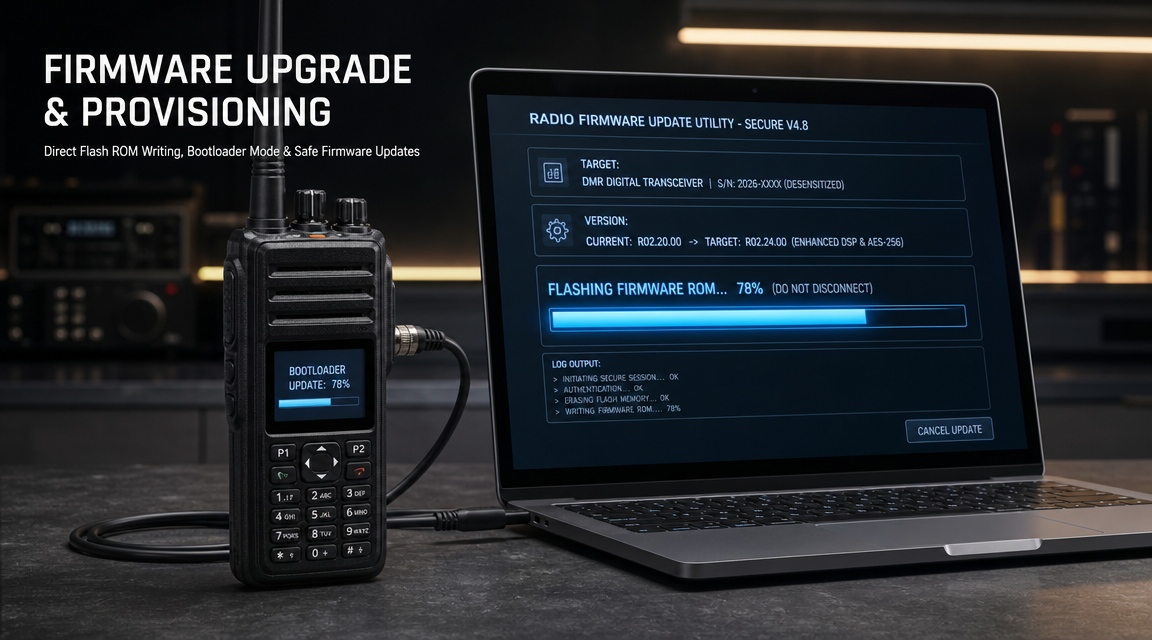
A progress indication that moves, and a completion message from the tool rather than from the radio screen.
The radio may restart once or twice. That is normal. A radio that restarts repeatedly is not.
If the tool reports success but the version has not changed, the write did not reach the firmware store.
When to stop
Stop if progress stalls for longer than the tool’s own timeout guidance, or if the cable is disturbed.
Stop if the tool asks to convert the codeplug and you have no backup of the original structure.
Stopping is cheap before the erase step and expensive after it. Most tools warn you at that boundary.
Batch upgrade
A batch is a production line. It needs grouping, a sequence and a log.
Group by model and version
| Group | Why it is separate |
|---|---|
| Same model, same version | One file, one CPS setting, lowest risk |
| Same model, older version | May need an intermediate step first |
| Different model | Different file; never mix in one run |
| Units with add-on features | Licences and options must survive the write |
Serial or parallel
Serial is slower and safer. One cable, one radio, one log line at a time.
Parallel needs a powered hub and a tool that addresses ports. It is faster and it multiplies the damage of a bad file.
Run the first unit of each group alone. Only then open the line.
The log
One line per radio: serial, version before, version after, result, operator and time.
The log is what turns a batch into an auditable job. It is also what you send to the vendor when one unit fails.
When one fails mid-batch
Pull that unit out and keep the line moving. Do not reflash it inside the batch.
Note the serial and the exact message. A pattern across three units means the file or the CPS is wrong, not the radios.
Finish the batch, then handle failures together. Context switching is how mistakes get made.

When it fails
A failed radio firmware upgrade looks like three different faults. Identify which one you have before you act.
Failure one: no start
The radio shows nothing, or only a backlight. It does not respond to the keypad.
This usually means the erase completed and the write did not. The bootloader may still be intact.
Try the recovery entry first. Many platforms accept a cable write even when the screen stays dark.
Failure two: boot loop
The radio starts, shows a logo, restarts. Over and over, at the same point.
A boot loop is often a codeplug mismatch rather than a firmware fault. The firmware runs, then rejects the configuration.
Read the radio if the tool still connects. If it does, the firmware is fine and the codeplug needs attention.
Failure three: partial write
The tool reports an error at a percentage. The radio may still work, with missing features or a wrong version string.
Do not put it into service. A partly written radio can behave normally for a day and then fail at shift change.
Rewrite the same file before trying anything else. Repeat writes with the same file are usually harmless.
Recovery mode
Most vendors build a recovery entry: a key combination at power-on, or a tool that ignores the main firmware.
Get the procedure from the vendor’s service documentation. Guessing key combinations wastes the remaining bootloader.
Recovery usually wants the same file and the same cable. Change one variable at a time.
What not to do
- Do not pull the battery during a write.
- Do not retry with a different file before noting the first error.
- Do not reformat or wipe the radio to “clean it up”.
- Do not send it to a depot without the log.
What to send to the depot
Send the serial, the firmware file name, the CPS version, the exact error text and the step where it stopped.
Attach the saved codeplug. If the unit is recoverable, the depot can restore the configuration instead of rebuilding it.
A unit with a log is a repair. A unit without one is an investigation you pay for.
Rollback
Rollback is a decision made before the upgrade, not after it goes wrong.
When to roll back
Roll back if a critical function is gone, if audio quality dropped, or if the radio no longer registers on the system.
Do not roll back for cosmetic changes or a menu that moved. Those are training issues, not firmware issues.
Roll back the whole fleet or none of it. A mixed fleet produces faults nobody can reproduce.
How to roll back cleanly
Use the previous firmware file and the CPS version that matched it. Restore the codeplug saved before the upgrade.
If the platform blocks downgrades, ask the vendor for the downgrade path before the project, not after.
Record the rollback in the same log. The next engineer needs to know the fleet went backwards.
Verifying after the upgrade
After a radio firmware upgrade, verification is a checklist, not an impression.
Version and identity
Read the firmware version from the radio and compare it with the file name. They should agree.
Check the radio ID, the serial and the model string. An upgrade that resets the ID breaks every private call to that unit.
Codeplug integrity
| Check | Pass condition |
|---|---|
| Zone and channel count | Same as the baseline sheet |
| Talkgroup and contact list | No entries missing |
| Encryption keys | Present by key ID |
| Feature licences | All previously enabled options still on |
| Scan lists | Present and in the original order |
Functional checks
| Test | What it proves |
|---|---|
| Transmit to a second radio | Audio path and signalling |
| Receive on each talkgroup | Group list survived |
| Private call to a known ID | Identity intact |
| Emergency button | Critical function still mapped |
| Accessory detect | Audio accessory still recognised |
| Battery gauge | Power management not broken |
Sign-off
One sheet per batch: what was upgraded, by whom, with which file, and what was tested.
Keep the sheet with the codeplug backups. Together they are the unit’s history.
If a check fails
Do not return the radio to service. A failed check after a radio firmware upgrade is cheaper to fix now than in the field.
Restore the saved codeplug first. Half of the failures at this stage are configuration, not firmware.
If the fault survives a restore, roll that unit back and log the symptom precisely.
Documentation that makes it repeatable
The second upgrade should take half the time of the first. That only happens if the first was written down.
What belongs in the runbook
The file names, the CPS version, the cable that worked, the recovery entry, and the name of the person who knows.
Add the vendor contact and the release note for each version. Future you will not remember which file was which.
What to tell users
Tell them the radio may restart and that channels should look the same afterwards.
Give them one line to report problems: what they pressed, what they expected, what happened. That line is worth more than a description of “it broke”.
Frequently asked questions
How long does a radio firmware upgrade take?
It depends on the file size and the link. A single unit is usually minutes; a batch is an afternoon.
Plan for the restore of settings as well. The write is rarely the long part.
Can it be done over the air?
Some platforms support it. It is convenient for remote sites and unforgiving of weak links.
Do not start an over-the-air write on a marginal signal. A cable is slower and far more predictable.
Will the upgrade erase my channels?
Normally not, and sometimes yes. Structure conversions and major version jumps are the usual causes.
That is the whole reason for the backup. Restore the codeplug and the channels return.
Can a radio firmware upgrade be undone?
Often, but not always. Keep the old file and confirm the downgrade policy before you begin.
If downgrades are blocked, treat the upgrade as permanent and pilot it on one unit first.
Does it affect the licence?
The licence covers the station and its emissions, not the software version. A maintenance release changes nothing on the licence.
If a radio firmware upgrade alters frequency range, modulation or output power, the authorisation question comes first. Ask before loading.
Do I need to upgrade every radio?
No, but keep a fleet consistent within a talkgroup. Mixed versions in one group cause faults that look like coverage problems.
Upgrade by group, verify the group, then move to the next.
Contact us
Send us your model list and current versions. We will confirm the file, the CPS release and the recovery path.
Contact our sales manager directly.
Sales Manager: Kevin
WhatsApp: +852 60731163
WeChat: +8616623617128
Email: fengfanannie@163.com